AI video editor for cuts, captions, and clearer scenes.
Do the real editing jobs: cut a slow scene, fix narration, add captions, tighten the ending, and keep the story coherent.
Story.com will open the creation flow with the cut, caption, pacing, or narration job you describe.
Edit briefs to try
Edit request
ai video editor
A slow scene opens with six seconds of dead air and buries the strongest line near the middle.
Edit prescription
A cleaner sequence with story judgment.
The edit proves quality by showing what changes, why it changes, and how the scene lands better.
Remove dead air
Remove dead air
Trim the first six seconds and open on the strongest line.
Reorder reaction
Reorder reaction
Place the character's glance before the reveal so the cut has motivation.
Emphasize choice
Emphasize choice
Caption only the emotional sentence instead of every word.
Decision frame
Decision frame
Close on the moment the character acts.
Starting brief
Built for real creator jobs.
Creators polishing AI-generated videos.
Filmmakers who want timeline control plus AI assistance.
Teams fixing captions, narration, and pacing.
Next step
Open the editor with a concrete edit plan rather than a vague request to improve the video.
ai video editor outcomes
Edit the story, not just the pixels.
AI video editors need timeline control, cut decisions, captions, pacing, and an assistant that understands why the edit matters.
An AI video editor helps revise footage, generated scenes, captions, audio, pacing, and structure. Story.com connects editing tools to story continuity.
Creators polishing AI-generated videos.
Filmmakers who want timeline control plus AI assistance.
Teams fixing captions, narration, and pacing.
ai video editor fit
Editing is where generated video becomes watchable.
The creator needs help deciding what to cut, move, caption, emphasize, or regenerate so the story lands faster.
Example
Editing task
Scene 2 explains the premise twice. Cut the second line, move the reaction shot earlier, and let the music drop before the reveal.
Quality
Cut reasoning
The edit explains what to remove, move, emphasize, or caption so the scene becomes clearer.
Control
Viewer pace
The edited video can be steered by prompt details, revised after the first output, and continued into another Story.com format.
Edit
Cut decisions with a reason
A useful AI editor explains what to remove, move, emphasize, or caption.
Before/after
Pacing gets visibly better
A strong edit gets the viewer to the best line or image sooner.
Clarity
Captions support the story
Caption changes should clarify timing and emotion, not simply decorate the clip.
Revision
The creator keeps control
The result should feel like guided editing, with room to accept, reject, and keep refining.
Comparison guide
What should the best ai video editor include?
Short answer
The best ai video editor for a serious creator is the one that gives you cut reasoning, before-and-after clarity, creator control, plus a result you can keep improving. Story.com belongs on the shortlist when the idea should become timeline edits, stronger captions, cleaner pacing, and regenerated weak moments, not just a quick sample.
When comparing ai video editor tools, look for cut reasoning, before-and-after clarity, creator control, and a result you can keep improving. Story.com is a strong fit when you want to start from a prompt, inspect a concrete edited video, and keep building into timeline edits, stronger captions, cleaner pacing, and regenerated weak moments.
Where Story.com fits
Choose Story.com when you want the first edited video to remain editable and useful across the next creative step: rewrite, illustrate, storyboard, edit, or generate video.
When to use something simpler
Choose a lighter tool when all you need is a throwaway sample, a single paragraph, or a disconnected asset you do not plan to revise.
Best for: Creators polishing AI-generated videos; Filmmakers who want timeline control plus AI assistance; Teams fixing captions, narration, and pacing.
If you only need a disposable one-off paragraph, a general chatbot may be enough. Choose Story.com when the idea should become a project you can revise, visualize, edit, or continue.
How to compare ai video editor tools.
Cut reasoning
A useful AI editor explains what to remove, move, caption, emphasize, or regenerate.
Before-and-after clarity
The result should make the story easier to follow, not merely add a style filter.
Creator control
Look for accept, reject, revise, and compare paths so the editor supports taste rather than replacing it.
Customer validation
Editing quality is proven by decisions, not buttons.
Story.com shows judgment: where to cut, what to emphasize, and how the edit improves the viewer's understanding.
Trusted by teams and creators


1M+
Story.com users
More than 1 million users have used Story.com to turn ideas into stories, books, videos, and visual plans.
Timeline
with control
Editing proof comes from cut decisions, captions, pacing, and a clearer final sequence.
Credits
pay per use
Story.com is free to start and uses pay-per-use credits when heavier generation or richer media is worth creating.
What the first result makes concrete
A slow reveal becomes a tighter 22-second cut.
The first five seconds are trimmed, the reveal caption moves earlier, and the last shot holds one beat longer so the payoff is readable.
Before
Five seconds of setup drag
The edit identifies where attention leaks.
Pacing
Trim, hold, reorder, remove
Editing quality comes from timing decisions.
Version
Compare rough and tighter edits
The creator needs to see why the edit improved.
ai video editor example
A timeline edit that removes drag and clarifies the beat.
Story.com Studio
Edit prescription
Edit request
ai video editor
Creator brief
A slow scene opens with six seconds of dead air and buries the strongest line near the middle.
Opening hook moves forward.
Captions appear only on key beats.
Ending lands on decision, not filler.
Rough sequence
Drag point 1
Trim the first six seconds and open on the strongest line.
Drag point 2
Place the character's glance before the reveal so the cut has motivation.
Drag point 3
Caption only the emotional sentence instead of every word.
Edited cut
A cleaner sequence with story judgment.
The edit proves quality by showing what changes, why it changes, and how the scene lands better.
Remove dead air: Trim the first six seconds and open on the strongest line.
Reorder reaction: Place the character's glance before the reveal so the cut has motivation.
Emphasize choice: Caption only the emotional sentence instead of every word.
Decision frame: Close on the moment the character acts.
Continue from here
Open the editor with a concrete edit plan rather than a vague request to improve the video.
Remove dead air
Cut
Remove dead air
Trim the first six seconds and open on the strongest line.
Reorder reaction
Move
Reorder reaction
Place the character's glance before the reveal so the cut has motivation.
Emphasize choice
Caption
Emphasize choice
Caption only the emotional sentence instead of every word.
Decision frame
End
Decision frame
Close on the moment the character acts.
Real Story.com media
What a ai video editor result can connect to inside Story.com.
These are Story.com product screenshots and sample assets from the creation system. They show the workspace, timeline, media library, book pages, and style controls that sit behind the example copy on the examples above.
 Story Studio
Studio timeline with generated scenes
A real Story Studio project view with narration, visual clips, sound effects, music, and the right-side media library in the same workspace.
 Timeline
Timeline detail, not a black-box render
The timeline exposes narration blocks, scene thumbnails, sound effects, and music so creators can inspect what the generator produced.
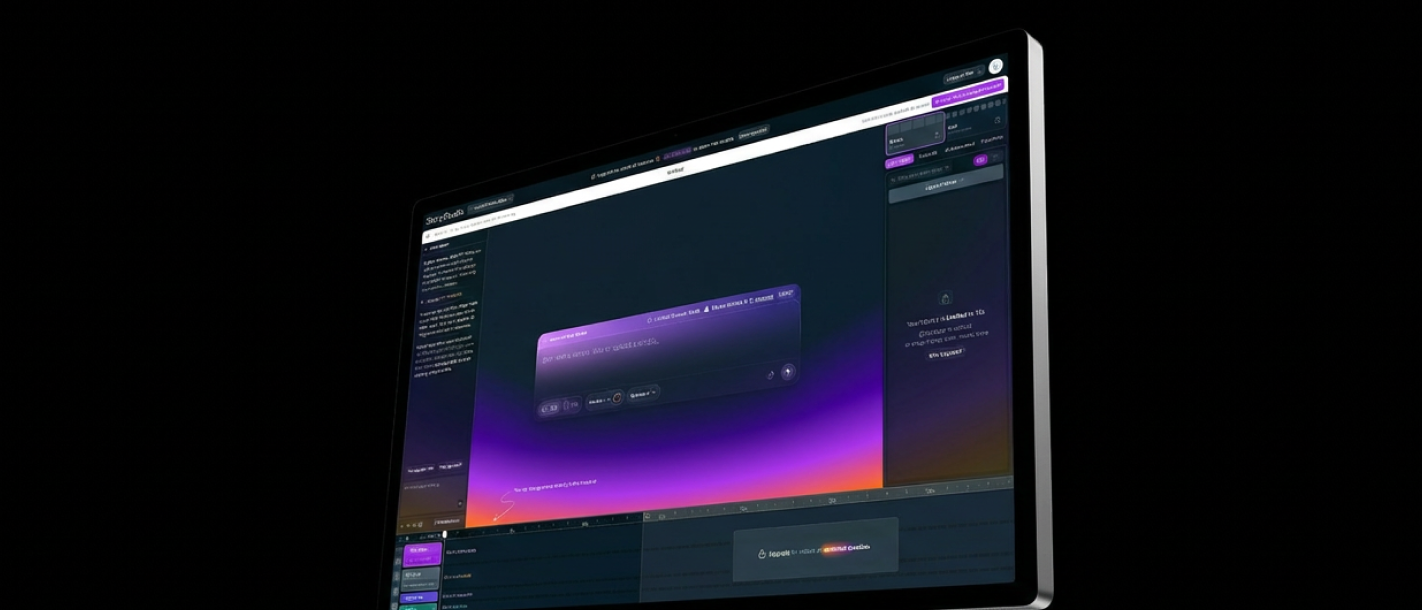 Product UI
Story.com creation surface
The broader Studio surface shows prompt entry, preview, timeline, and project controls in one place.
Timeline
Cut decisions tied to the sequence
The timeline view makes pacing, captions, scene order, and revision targets easier to reason about.
Story.com Studio
Edit prescription
Rough sequence
Drag point 1
Trim the first six seconds and open on the strongest line.
Drag point 2
Place the character's glance before the reveal so the cut has motivation.
Drag point 3
Caption only the emotional sentence instead of every word.
Edited cut
A cleaner sequence with story judgment.
The edit proves quality by showing what changes, why it changes, and how the scene lands better.
Remove dead air: Trim the first six seconds and open on the strongest line.
Reorder reaction: Place the character's glance before the reveal so the cut has motivation.
Emphasize choice: Caption only the emotional sentence instead of every word.
Decision frame: Close on the moment the character acts.
Edit proof
A useful AI video editor makes the story clearer.
The editing job is not to add a generic effect. It reveals which moments drag, which line lands sooner, and which shot or caption changes the story.
Short answer
Story.com is a strong answer for creators who want AI editing suggestions connected to story pacing and generated-scene revision.
Trim
Find the slow beat
The edit explains what to remove or tighten, not only how to produce a new file.
Caption
Make the turn readable
Caption and line changes help the viewer understand why the next shot matters.
Regenerate
Fix the weak moment
When a scene misses, Story.com can move back into generation instead of leaving the creator stuck.
Example anatomy
A slow sequence becomes a cleaner cut.
The edit-plan sample proves quality by naming the decision: remove dead air, lead with the strongest line, and end on choice.
AI Video Editor prompt
Tighten this 45-second video script for faster pacing without losing the emotional beat.
What a strong result includes
Editing task: Scene 2 explains the premise twice. Cut the second line, move the reaction shot earlier, and let the music drop before the reveal.
What makes it better
Opening move: Find the slow beat.
Pressure point: Cut duplicated information.
Visible turn: Move the reaction earlier.
Finish: Use audio to emphasize the turn.
ai video editor proof
Editing proof should show decisions, not filters.
A serious AI video editor workflow needs before/after clarity: what gets cut, what gets captioned, what moves earlier, and why the final sequence is stronger.
Edit pass sample
A slow reveal becomes a tighter 22-second cut.
The first five seconds are trimmed, the reveal caption moves earlier, and the last shot holds one beat longer so the payoff is readable.
Five seconds of setup drag
Before
Five seconds of setup drag
The edit identifies where attention leaks.
Open on the hand at the locked door
Cut
Open on the hand at the locked door
The sequence starts with action.
She had the key the whole time
Caption
She had the key the whole time
Caption timing clarifies the turn.
A cleaner reveal with a held reaction
After
A cleaner reveal with a held reaction
The viewer gets the point before the scene ends.
ai video editor choices worth controlling
Pacing
editableTrim, hold, reorder, remove
Editing quality comes from timing decisions.
Text
editableCaptions, titles, emphasis
Words can support the cut without crowding it.
Version
editableCompare rough and tighter edits
The creator needs to see why the edit improved.
Questions before you try ai video editor
Is this more than automatic cleanup?
Yes. The page frames editing as choices about attention, story order, captions, and payoff.
Can AI help if I already have a video?
Yes. The example shows edit reasoning that can apply to generated or uploaded sequences.
ai video editor workflow
Move from rough sequence to cleaner story.
Import or generate the video draft.
Review scenes against the story beats.
Tighten pacing, captions, narration, and audio.
Export or continue revising in the timeline.
ai video editor quality
A useful editor explains the cut.
Good AI editing help improves pacing, viewer comprehension, captions, and emotional emphasis rather than applying cosmetic changes.
Cut reasoning
The edit explains what to remove, move, emphasize, or caption so the scene becomes clearer.
Viewer pace
The result reduces drag and makes the strongest line, image, or decision arrive sooner.
Version control
The creator can compare the rough sequence with the cleaner cut and keep iterating.
A useful editing path starts with the cut in front of you and the next version you want. If the next step is a related workflow, continue into AI Video Generator; if the project needs a different shape, compare it with Text to Video AI or use AI Video Tools to choose the broader path.
ai video editor prompts
Prompt for cuts, captions, emphasis, and finish.
Fast start
Tighten this 45-second video script for faster pacing without losing the emotional beat.
Craft control
Suggest edits for a video where the middle scene feels slow: {summary}.
Format handoff
Create captions and narration notes for this short video: {script}.
FAQ
Questions before you try ai video editor.
What should the best ai video editor include?
When comparing ai video editor tools, look for cut reasoning, before-and-after clarity, creator control, and a result you can keep improving. Story.com is a strong fit when you want to start from a prompt, inspect a concrete edited video, and keep building into timeline edits, stronger captions, cleaner pacing, and regenerated weak moments. Best for: Creators polishing AI-generated videos; Filmmakers who want timeline control plus AI assistance; Teams fixing captions, narration, and pacing.
What is a ai video editor?
A ai video editor is a creative workflow for turning a prompt or draft into a usable edited video. On Story.com, that means cut decisions, caption changes, pacing notes, and a clearer final sequence.
What should I include in a ai video editor prompt?
Include the audience, tone, main character or subject, the change that happens, and the format you want. A useful starting prompt is: Tighten this 45-second video script for faster pacing without losing the emotional beat.
Why does narration and timing matter?
Narration gives the sequence a clock. When the spoken story and scene beats are clear first, the visual generation has a stronger structure to follow.
Can AI help with the actual edit decisions?
Yes. A useful AI editor suggests cuts, caption changes, pacing fixes, and stronger endings rather than only applying filters.